How to Scan QR Codes: A Complete Guide for All Devices
Learn how to scan QR codes on any smartphone or tablet, whether you're using iPhone, Android, or any other device.
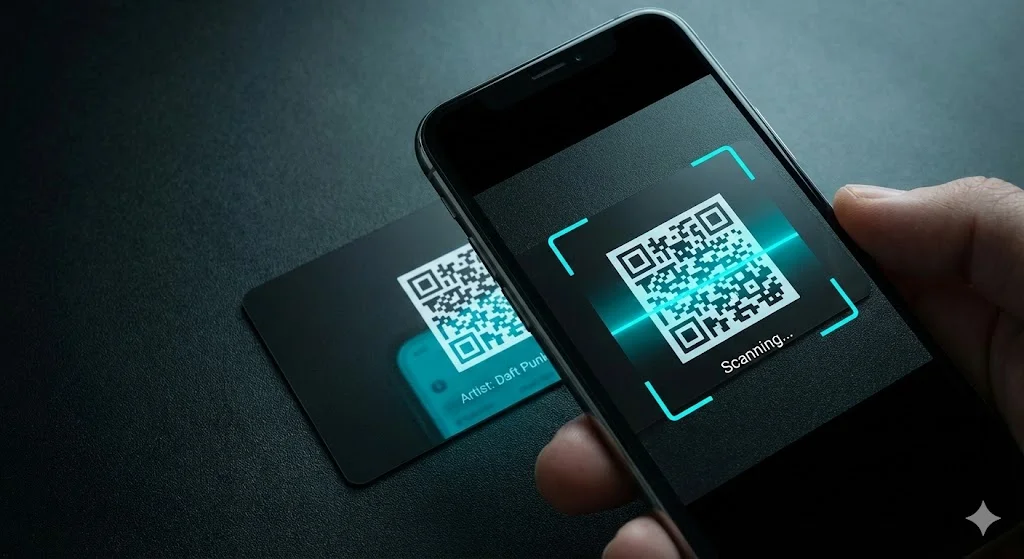
QR codes have become an essential part of modern life, appearing on everything from restaurant menus to music game cards. Yet many people still feel uncertain about how to scan them properly. If you've ever fumbled with your phone while a friend waited for you to scan a game card, this guide is for you. You can also try our online QR scanner which works directly in your browser.
The good news is that scanning QR codes has become remarkably simple on modern smartphones. Most devices now have QR scanning built directly into their camera apps, eliminating the need for separate scanning applications. This wasn't always the case, but smartphone manufacturers recognized how frequently people encounter QR codes and streamlined the process accordingly.
For iPhone users running iOS 11 or later, scanning is beautifully straightforward. Simply open your Camera app and point it at the QR code. You don't need to press any buttons or switch to a special mode. The camera automatically recognizes the QR code pattern and displays a notification at the top of the screen. Tapping that notification opens whatever the code contains, whether that's a website, a music track, or any other linked content.
Android devices work similarly, though the exact process varies slightly between manufacturers. On most recent Android phones, opening the camera and pointing it at a QR code triggers automatic detection. Some Android devices require you to enable this feature in camera settings first. If your camera doesn't seem to recognize QR codes, look for a setting called something like "Scan QR codes" or "Google Lens suggestions" in your camera app's settings menu.
For older devices or situations where the built-in scanner doesn't work well, Google Lens provides an excellent alternative. This feature is available through the Google app on both Android and iPhone. Open Google Lens, point your camera at the QR code, and it handles the rest. Google Lens is particularly useful for stubborn codes that standard cameras struggle with.
Lighting plays a crucial role in successful QR code scanning. Direct sunlight can create glare that confuses your camera, while very dim environments make it hard for your phone to distinguish the code's black and white pattern. The sweet spot is diffused, even lighting—the kind you'd find in a normally lit room. If you're having trouble scanning outdoors, try angling the card to reduce glare rather than pointing your phone directly down at it.
🎵 Create your own music quiz
Surprise your guests with a personalized music game — ready in just a few minutes.
Distance matters more than most people realize. Holding your phone too close often fails because the camera can't focus properly. Too far away makes the code's details too small to read. The ideal distance varies by device, but starting about six to eight inches away and adjusting from there usually works well. Modern phones with autofocus handle this automatically, but older devices might need a moment to find the right focal distance.
The physical condition of the QR code itself affects scanning success. Wrinkled, torn, or partially obscured codes can be problematic. A scratch across the center of a QR code is more likely to cause issues than one along the edge, because the center contains more critical data. However, QR codes include built-in error correction that allows them to work even with minor damage—that's why they often still function with small scratches or smudges.
When scanning music game cards like those used with Hitify, you'll notice the codes respond quickly because they're designed specifically for mobile scanning. The contrast is optimized, the size is appropriate, and the encoding is straightforward. If you're creating your own game cards using our print feature, keep these principles in mind: high contrast between the code and background, adequate size, and clean printing make all the difference. Check out our music packs for ready-to-use card collections.
Some people worry about QR code security, and these concerns aren't entirely unfounded. A QR code can link to any website, including malicious ones. However, your phone typically shows you the destination URL before opening it. Take a moment to verify that the link looks legitimate before proceeding. For game cards from trusted sources like Hitify, this is rarely a concern, but it's a good habit to develop for scanning unfamiliar codes.
If you've followed all these tips and still can't get a code to scan, the issue might be with the code itself rather than your device. Test your scanner on a different QR code to confirm it's working properly. If other codes scan fine, the problematic code may be damaged or poorly printed.